
Simulated calls, real screens
Self Call is a simulator. It gives you the full experience of receiving a phone call without a call ever being placed. Here is what happens under the hood, and why the setup steps exist.
-
Self Call registers as a calling account
Android lets apps register as calling accounts. It is the official system feature that calling apps use. That is what the Calling account switch in the app's permissions enables, and why the one-time setup step exists. First-time setup →
-
Android shows its real call screen
When a simulated call fires, the app asks Android to display an incoming call. You see your phone's genuine ring screen, not an imitation drawn by the app. No real call is placed: nothing touches your SIM or network, and no cell signal is needed.
-
Scheduled calls use system alarms
A call scheduled for later is armed as a system alarm, so it rings at the chosen time even if the app is closed. This is what the Alarms & reminders permission is for.
-
It behaves like a real call afterwards
If you don't answer within the ring duration, the call ends and shows up as missed. Simulated calls appear in your phone's call history just like real ones, and an answered call shows the ongoing-call notification until you hang up.
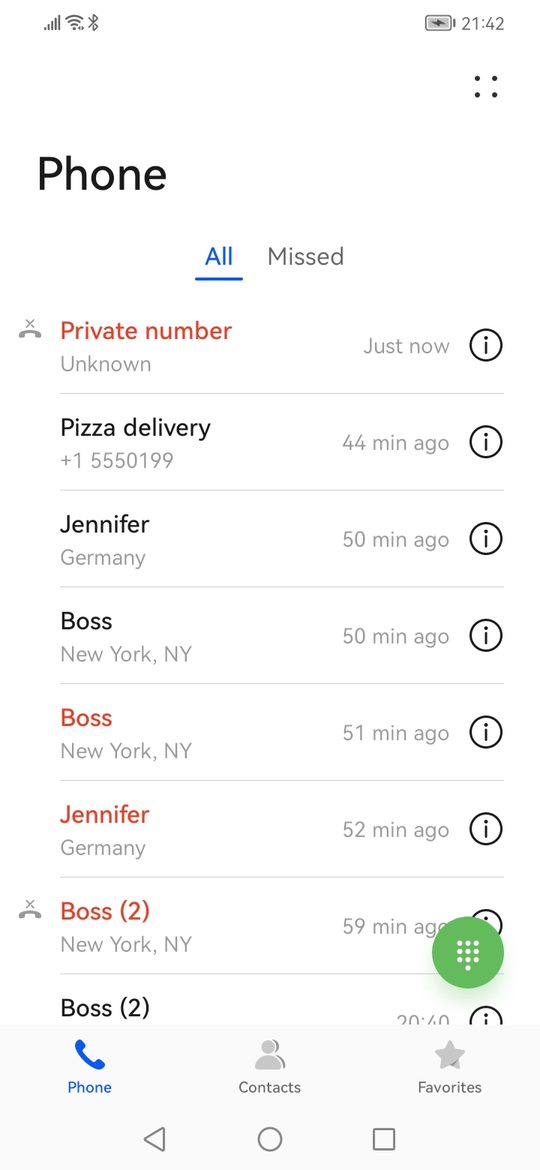
What the app can and cannot control
Because Android draws the call screen, some things are up to your phone, not the app:
- Ringtone. The call rings with your phone's ringtone, or the one assigned to that contact if the caller is a saved contact.
- Caller photo. Android looks the number up in your device contacts. A photo appears only for a saved contact with a picture. More on photos.
- Look and buttons. The answer and decline buttons, the swipe gestures and the layout are your phone's own.
- Do Not Disturb. With DND active the call arrives silently as a standard notification, as a real call would.
What the app does control: who the call appears to come from, when it rings, the ring mode (sound, vibrate or silent), how long it rings, and the audio you hear when you answer.
The one caution
Never pick Self Call under "Make calls with" in your phone's calling-account settings. Self Call cannot make real calls, so your phone would be unable to call anyone until you switched back to your SIM.
Permissions, and what each one unlocks
Every permission exists for a single visible feature and is explained inside the app. Contacts, microphone and audio-file access are all optional.
| Permission | What it is for | Needed? |
|---|---|---|
| Calling account | Lets simulated calls appear on Android's real incoming-call screen. | Required |
| Alarms & reminders | Rings scheduled calls at the exact time, even when the phone is idle. Without it Android may delay a call by minutes. | Highly recommended |
| Contacts | Pick a caller from your device contacts. Read only while the picker is open. | Optional |
| Microphone | Record an audio message. Used only while recording. | Optional |
| Music & audio | Attach an audio file from your phone. Only audio files are listed. | Optional |
| Do Not Disturb access | Lets the Silent ring mode mute the ringer for one call. Without it, silent calls vibrate instead. | Optional |
| Battery optimization exemption | Rarely needed. Scheduled calls ring without it; use it only if a call still fails to ring. | Optional |
None of these permissions is ever used to collect, transmit or share data. Privacy policy →